Standard Ebooks on iPhone
Start with a better public-domain edition.
Standard Ebooks is useful when you want classic literature with cleaner formatting, covers, and metadata than many raw archive files.
On iPhone, the main choice is workflow: discover inside a reading app, download from Safari, or import into the ecosystem where your books already live.
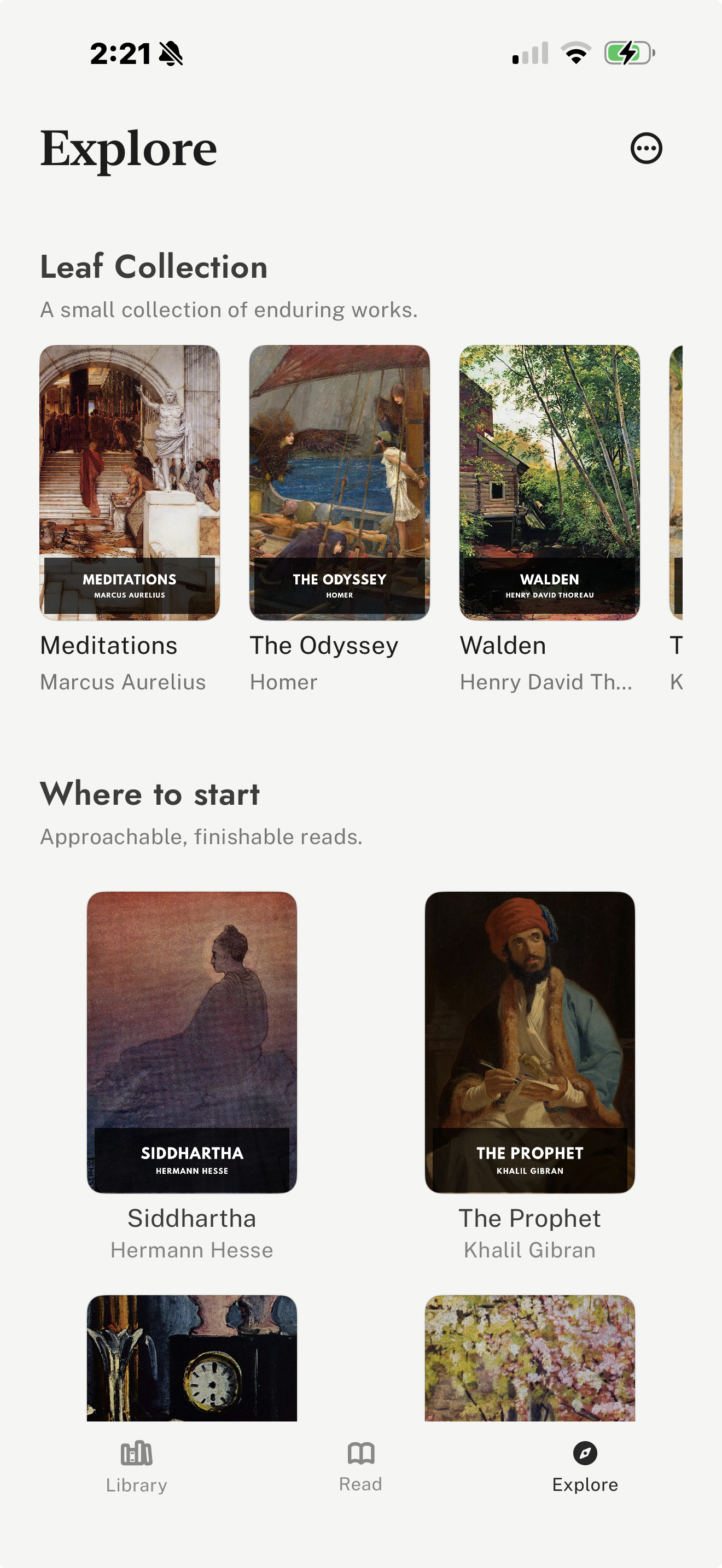
Read Standard Ebooks on iPhone
Standard Ebooks produces carefully prepared editions of public-domain books. For iPhone readers, the easiest path is usually EPUB: download the file, then open it in an app that handles imported books well.
- Open Standard Ebooks in Safari, or open Explore in leaf.
- Search or browse for the author or title you want.
- Choose an EPUB download when starting from the website.
- Use the iOS share sheet to open the file in leaf, Apple Books, or another compatible reader.
- After import, read from the app library rather than reopening the downloaded file.
Best iPhone workflows
| Workflow | Best for | Tradeoff |
|---|---|---|
| leaf Explore | Built-in Standard Ebooks discovery and vertical-swipe reading Open Explore in leaf, browse curated public-domain classics, import a Standard Ebooks title, then read it in your library. | Best when you want discovery and reading in one iPhone app; not a commercial bookstore. |
| Standard Ebooks website | Choosing a specific edition from the source Open Standard Ebooks in Safari, search or browse for a book, download an EPUB, then open it in a compatible reading app. | Flexible and source-direct, but the reader/import step happens outside the website. |
| Apple Books | A built-in Apple import path Download a Standard Ebooks EPUB, then use the iOS share sheet to open it in Books when available. | Convenient for occasional imports, less focused on vertical-swipe reading or public-domain discovery. |
| Kindle | Readers who want books in an Amazon library Download a compatible EPUB and use Send to Kindle if you want the book in Kindle apps or on Kindle devices. | Useful for Amazon-centered readers, but it adds an extra sending step. |
Where leaf fits
leaf is a good fit if you want Standard Ebooks discovery and reading in the same iPhone app. Explore helps readers find public-domain classics, and imported books can live beside EPUB, PDF, and Markdown files in the library.
For long classics, leaf adds vertical-swipe reading, reading journals, highlights, notes, passage and completion share cards, themes, fonts, custom fonts with leaf Pro, optional leaf Pro sync, and iCloud Book Vault.
Download leaf on the App Store if you want a reader built around imported books, free classics, and vertical-swipe reading.
FAQ
Can I read Standard Ebooks on iPhone?
Yes. Standard Ebooks can be read on iPhone by downloading EPUB files from the Standard Ebooks website or by using an app such as leaf that includes Standard Ebooks discovery through Explore.
What format should I download from Standard Ebooks for iPhone?
EPUB is usually the best choice for iPhone reading apps because it adapts to screen size, fonts, and reader controls. Kindle users can use a compatible workflow such as Send to Kindle.
Is Standard Ebooks free?
Yes. Standard Ebooks is a volunteer-driven project that produces free public-domain ebook editions. Public-domain rules can vary by country, so readers should consider local copyright rules.
Is Standard Ebooks better than Project Gutenberg?
Standard Ebooks is often better when you want polished formatting, covers, metadata, and carefully prepared editions. Project Gutenberg is better when you want the largest public-domain catalogue.
What is the easiest way to read Standard Ebooks on iPhone?
The easiest workflow depends on where you want the book to live. leaf is straightforward if you want built-in discovery plus vertical-swipe reading. Safari downloads and Apple Books can work well for occasional imports.
Sources
Related Reading
For broader free-reading options, see our guide to the best free eBook apps and sources for iPhone.
For the largest public-domain source, read our guide to reading Project Gutenberg books on iPhone.
If you are choosing a reader for downloaded files, read our guide to reading EPUB files on iPhone.
Browse every article in the leaf reading guides hub.